Atlassian Jira Cloud
Permission Preconfiguration
Jira Cloud should grant certain permissions to a technical user, who can be used in the Atlassian Jira Cloud agent to access all the data. Therefore a Jira Cloud user should be preconfigured in the following way:
-
In order to access users, groups, all projects and project roles, one of the technical user’s groups must have the Jira Administrators global permission.
-
In order to access all issues, the technical user or one of his groups must be included in all issue security levels, in all issue security schemes, and be granted the BROWSE Projects permission.
-
Comments and worklogs might have further access restrictions. These also hold true for a technical user who is part of Jira Administrators. Therefore, the technical user can only access and synchronize those comments and worklogs he is allowed to see by means of his roles. If all comments and worklogs should be indexed, the technical user must have the roles these items might be restricted to.
-
In order to retrieve certain server informations(e.g., the server time), one of the technical user’s groups must have the Jira Users permission.
Note: It is recommended to create a new technical user and a new group that contains only this user.
3LO-OAuth2 Preconfiguration
The connector uses OAuth2 3LO (also known as three-legged OAuth or authorization code grants) to authenticate against Jira Cloud. In Jira Cloud, a new app has to be registered. Visit https://developer.atlassian.com/apps/ and manage your applications.


After the registration, the authorization for the app must be configured.
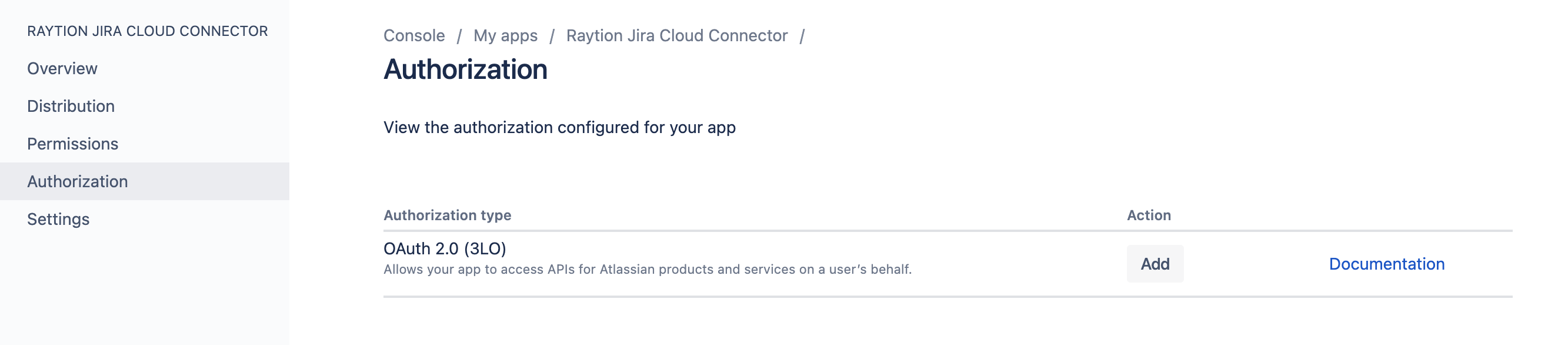
The callback URL can simply be set to http://localhost:13131 Note: that specifying the http protocol does not constitute a security risk, since the callback URL will only be passed locally as part of the Tokenfetcher run. Note also that the specified port (13131) is unrelated to the port of the connector’s Administration UI.

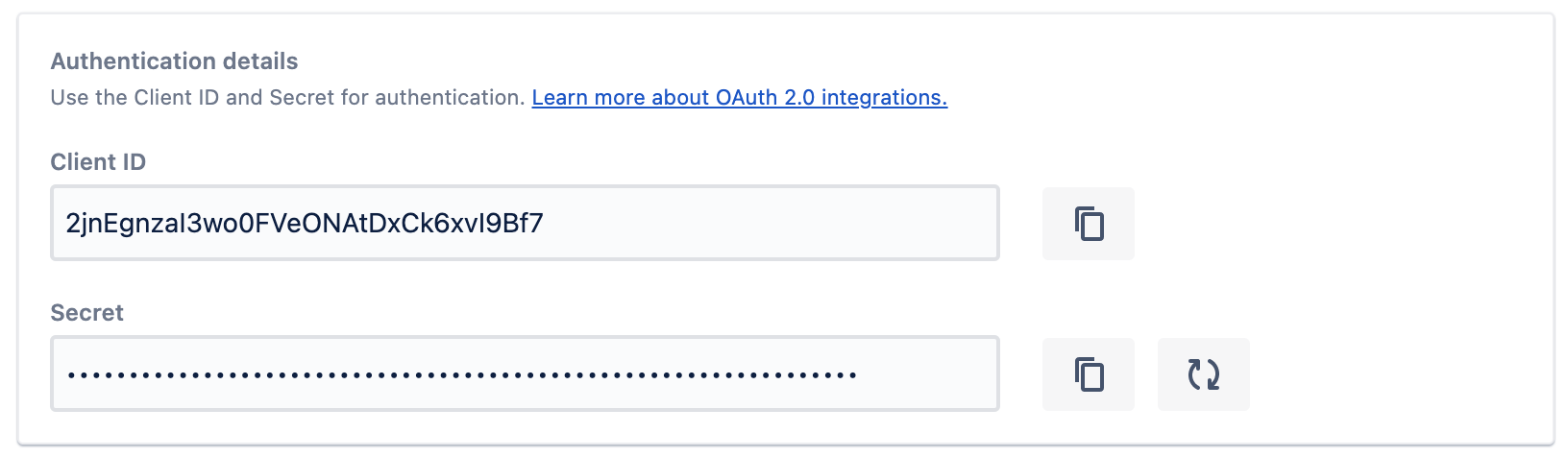
The authorization of the app automatically assigns a client ID and secret to your application. They can be found in the Settings section of the app. These parameters are required to request the initial refresh token using the Tokenfetcher. The Tokenfetcher and the app also need the same notion of a Callback URL which is configured in the section Authorization/OAuth 2.0 (3LO).
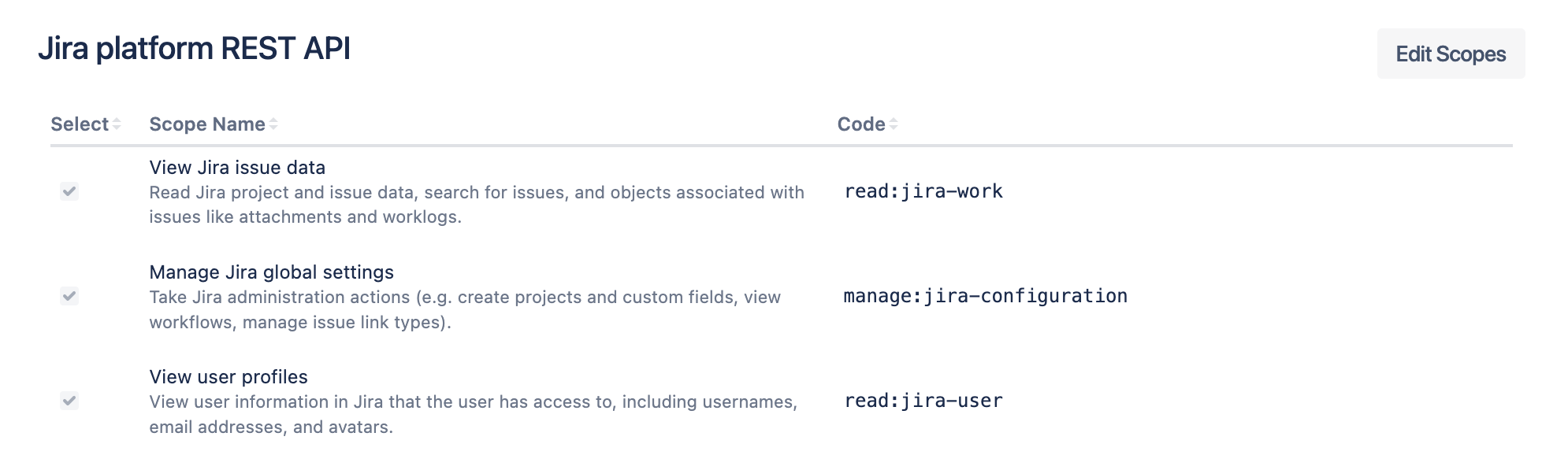
For Permissions, choose Add "Jira API". After it is added, choose Configure. In "Jira platform REST API", select the following Classic scopes:
-
View Jira issue data(read:jira-work)
-
View user profiles(read:jira-user)
-
Manage Jira global settings(manage:jira-configuration)
and the following Granular scopes:
-
read:application-role:jira
-
read:attachment:jira
-
read:audit-log:jira
-
read:avatar:jira
-
read:comment.property:jira
-
read:comment:jira
-
read:field-configuration:jira
-
read:field:jira
-
read:group:jira
-
read:issue-details:jira
-
read:issue-meta:jira
-
read:issue-security-level:jira
-
read:issue-security-scheme:jira
-
read:issue-type-hierarchy:jira
-
read:issue-type:jira
-
read:issue.changelog:jira
-
read:issue.vote:jira
-
read:issue:jira
-
read:permission-scheme:jira
-
read:permission:jira
-
read:project-category:jira
-
read:project-role:jira
-
read:project-type:jira
-
read:project-version:jira
-
read:project.component:jira
-
read:project.feature:jira
-
read:project.property:jira
-
read:project:jira
-
read:status:jira
-
read:user.property:jira
-
read:user:jira
Requesting the Refresh Token with OAuth2 Token Fetcher
The connector needs initial refresh token to authenticate against the source system using 3LO OAuth2. To extract the token, the installation provides the OAuth2 Token Fetcher Tool which is a separately packaged and delivered alongside the connector:
raytion-oauth2-tokenfetcher-VERSION.zip
The executables are located in oauth2-tokenfetcher-VERSION/bin after unpacking the zipped file. Request the initial refresh token by executing the script with the following arguments from that directory.
oauth2-tokenfetcher(.bat) --api jiracloud -i <client_id> -s <client_secret> --port <port>
-
client_id: The Client ID configured for the application
-
client_secret: Client Secret assigned for the application
-
port: Redirect Port configured in the Callback URL for the application. If you configured the Callback URL with the suggested port value 13131, you can leave out the entire --port <port>option altogether.
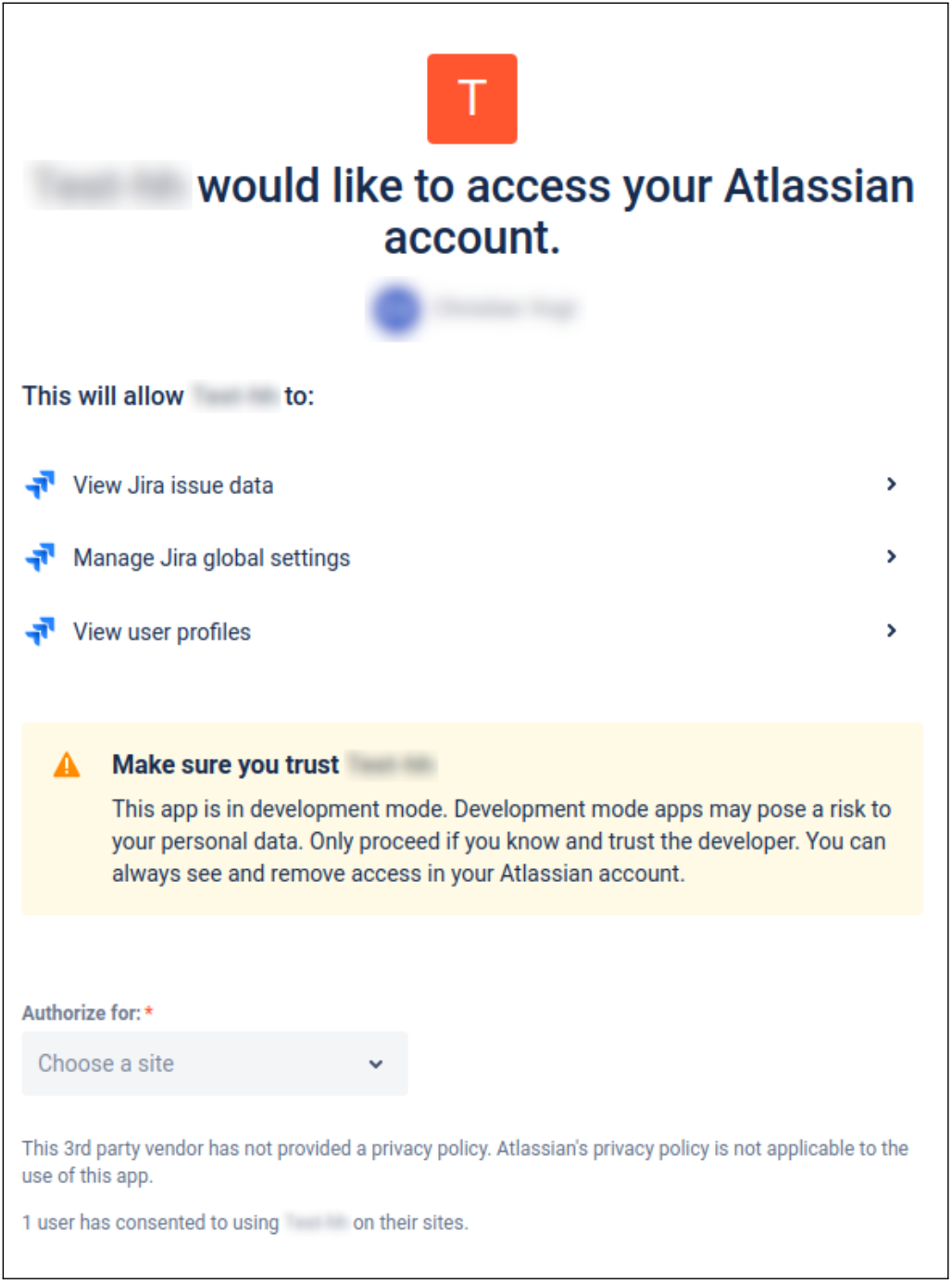
The Token Fetcher will open a local browser window, and an Atlassian Apps Management page will ask for confirmation. Make sure to set the “Authorize for” field to the desired Jira Cloud instance and click “Accept”.
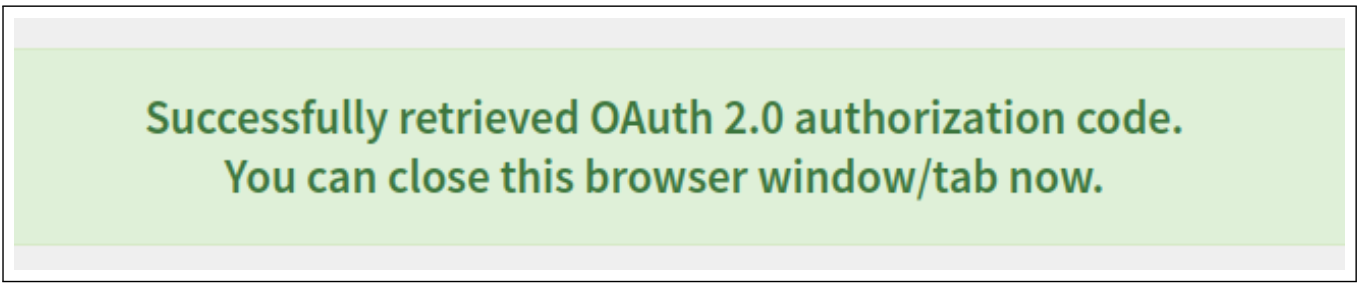
Upon successful confirmation, a green banner page will be displayed,