Connector Quick Start

Start Connector

Unpack the distribution and run the start script located in the installation bin directory.

LINUX

./connector

WINDOWS

./connector.bat

Login to Connector

Once the Connector has started, navigate to the Admin UI and login with the default username and password, admin/admin:

Configure Connector

Follow the description and instruction in the Basic Configuration Menu to configure the mandatory settings.
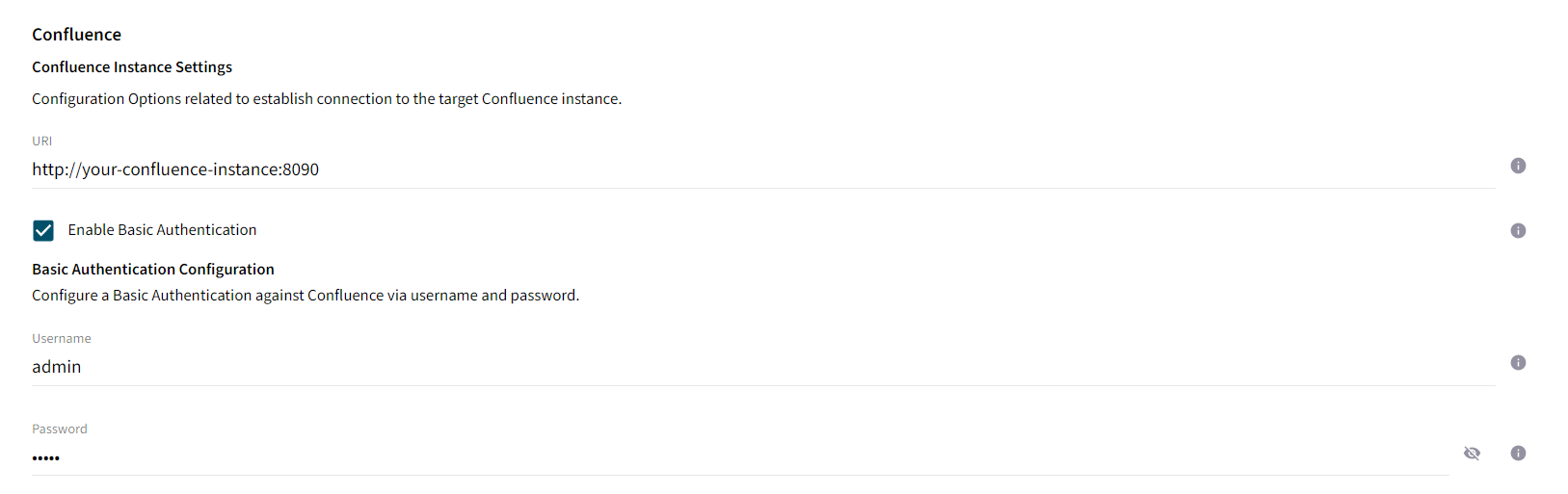
Atlassian Confluence Configuration

Configure the URL of your Confluence instance and the credentials for the technical account configured in the plugin in step Atlassian Confluence Quick Start - Setup Confluence Plugin - Plugin Configuration.
basic config confluence

Google Cloud Search Configuration

Google Cloud Search Service Account

Configure the mail address of a technical user to check the existence of principals before feeding them. This is not the mail address from the service account described in the following.
Configure your Service Account which is used by the connector for authenticating and authorizing the requests send to Google Cloud Search API. A new service account can be created as part of step Google Cloud Search Quick Start - Create Service Account. The connector requires the created service account JSON file, which can be uploaded directly in the Admin UI of the connector.
gcs account settings service account

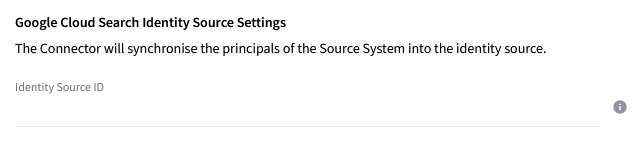
Google Cloud Search Identity Source

Configure the ID of the identity source created as part of step Google Cloud Search Quick Start - Create Identity Source.
gcs identitysource settings

Google Cloud Search Data Source

Configure the ID of the datasource created as part of step Google Cloud Search Quick Start - Create Data Source.
  • If you followed the step Google Cloud Search Quick Start - Create Data Source Schema, this is the default value assigned as object type to a document to specify the object type from a schema. It is applied when no meta date objectType is present at a document. The value has to be set to the object name of the schema set for your Data Source. The value can be retrieved from schema.objectDefinitions.name inside your schema Json file or payload.*
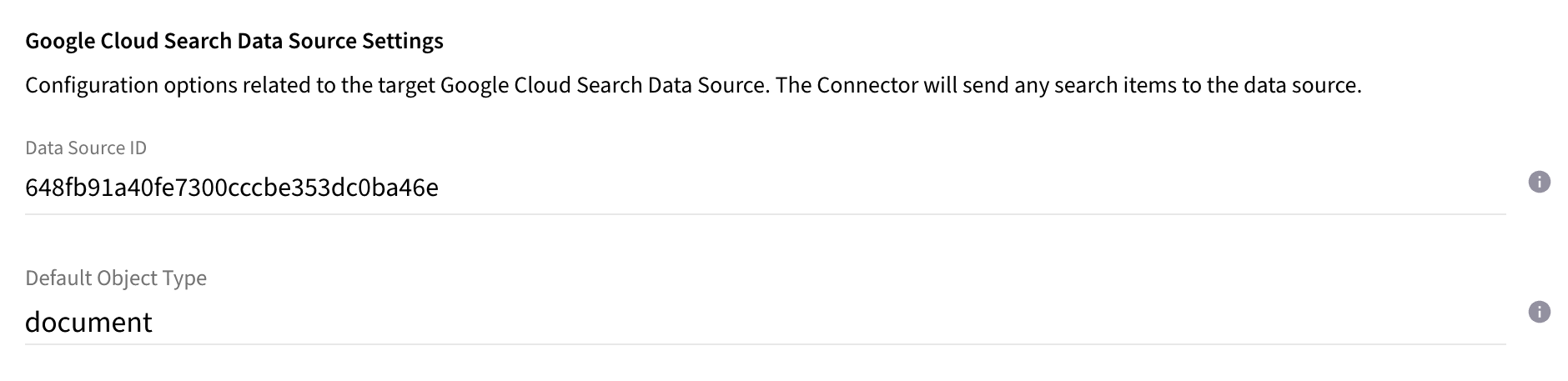
gcs datasource settings

Upload License

  • Contact Raytion and obtain a license for your connector

  • Login to the Admin UI

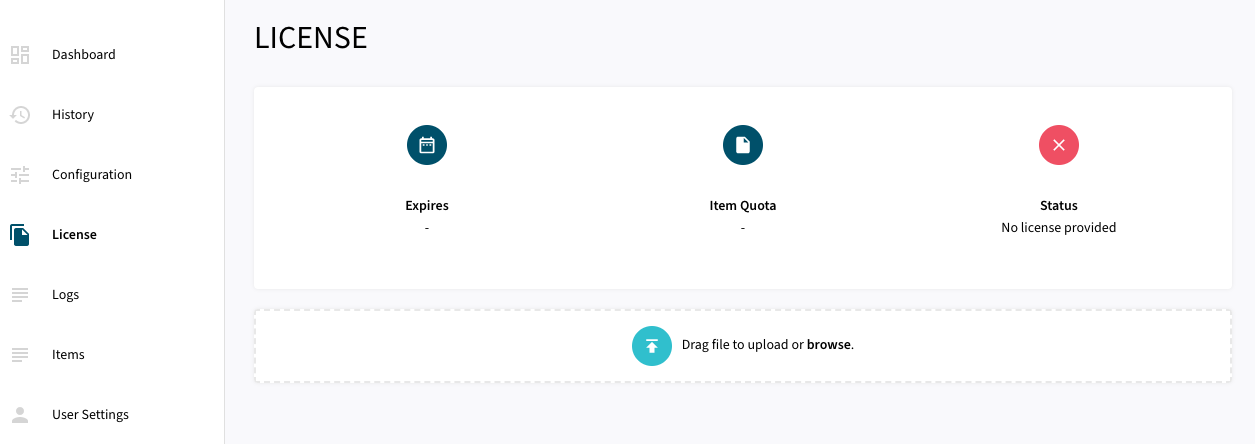
  • Select License in the menu:

uploadlicense 1
  • Upload the license file by browsing for the file or simply dragging a dropping the license onto the license page

  • The Status of the license will be displayed as valid, and the expiration and item quota will also be displayed:
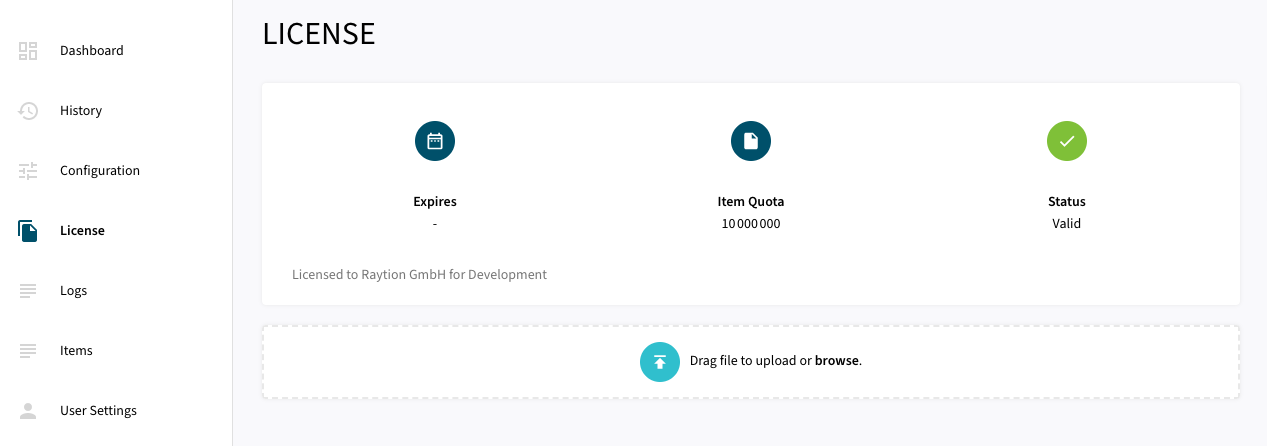

uploadlicense 2

Synchronizing Data

Once the connector is configured and the license uploaded, you can start synchronizing data using the traversal feature in the dashboard.

Content Traversal

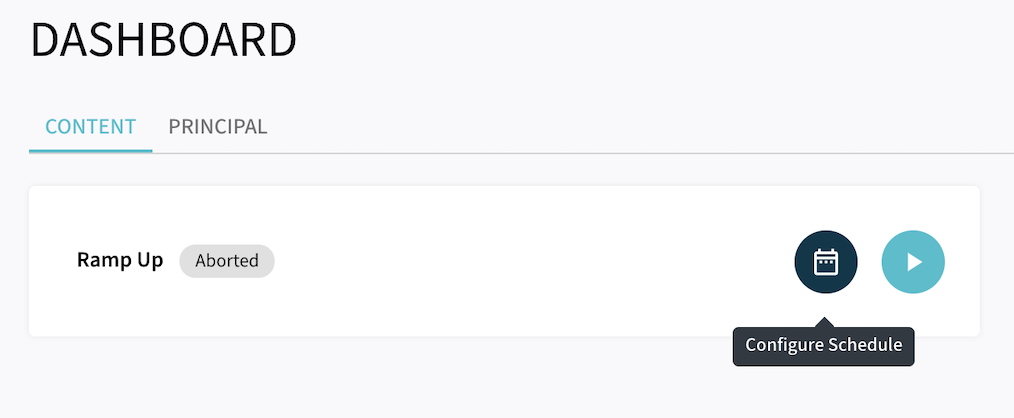
  • Ramp Up will process all items to Google Cloud Search.

  • Incremental will process only changed items since last traversal run.

dashboard content without change processing

Principal Traversal

  • Ramp Up will process all security information to Google Cloud Search.

dashboard principal

Schedule Traversal

Scheduled traversals can also be configured through the menu.

From this button a Schedule can be configured.
schedule button
From upper right corner you can choose the traversal type and then click on NEW SCHEDULED TRAVERSAL.
schedule type
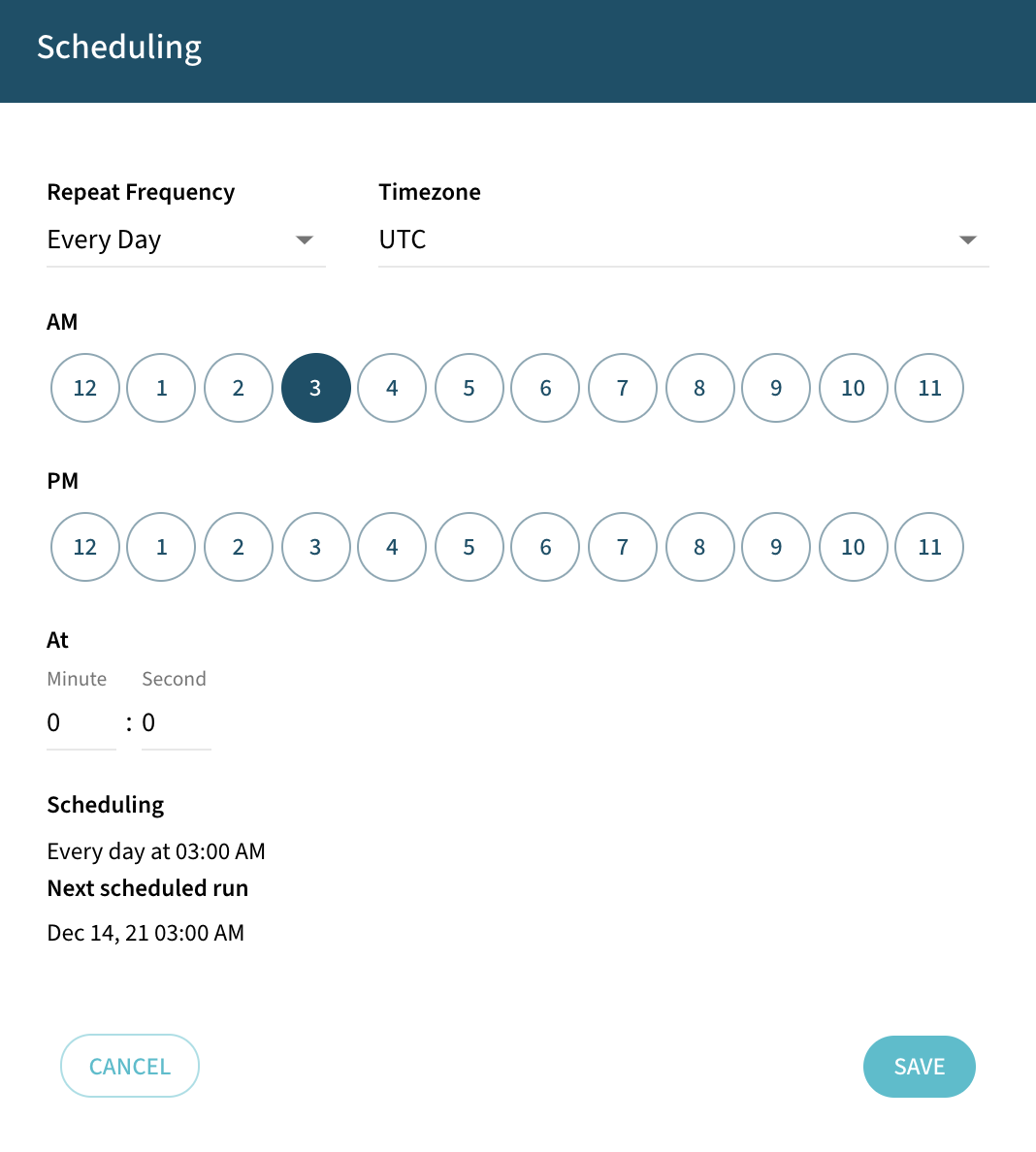
Configure the frequency that the Traversal will be executed and click Save.
schedule frequency