Connector Quick Start
Start Connector
Unpack the distribution and run the start script located in the installation bin directory.
LINUX
./connector
WINDOWS
./connector.bat
Login to Connector
Once the Connector has started, navigate to the Admin UI and login with the default username and password, admin/admin:
Configure Connector
Follow the description and instruction in the Basic Configuration Menu to configure the mandatory settings.
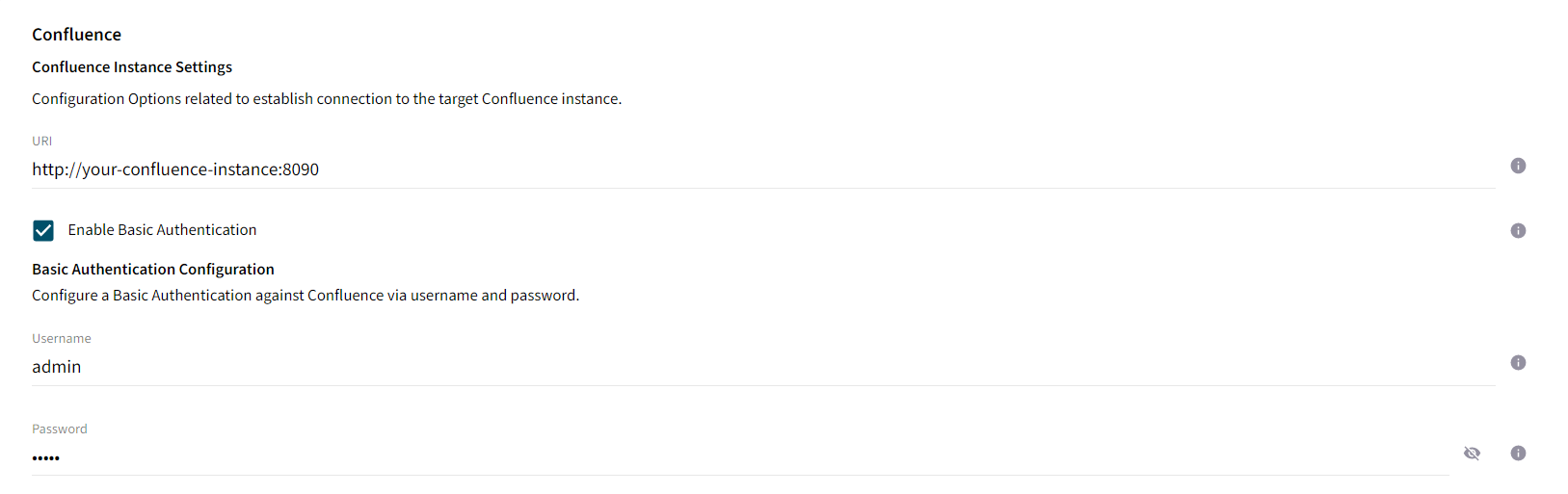
Google Cloud Search Configuration

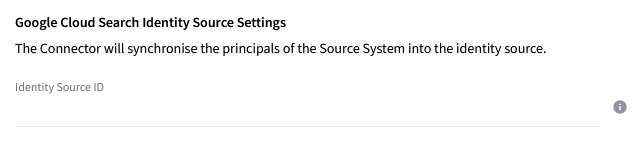
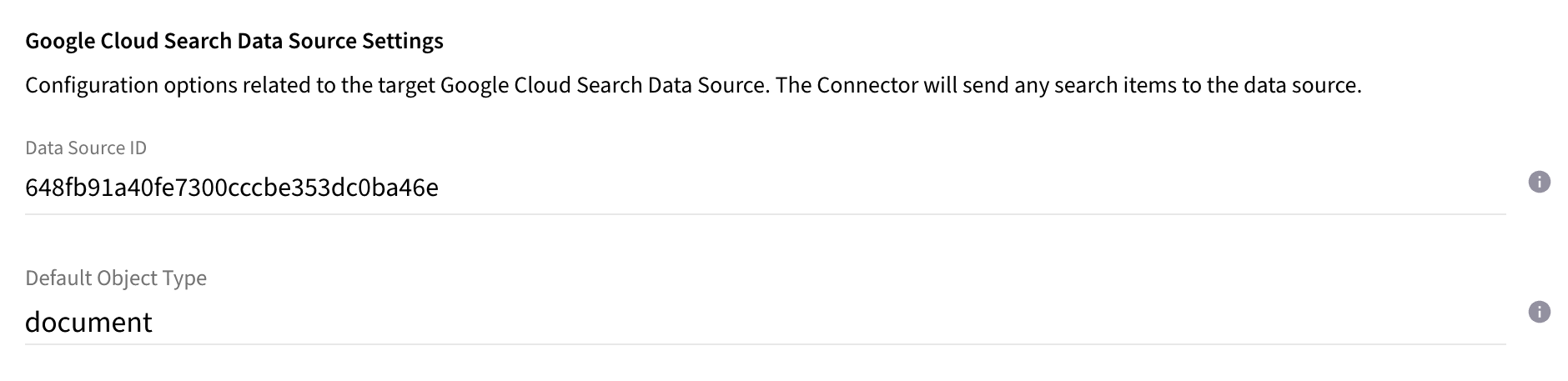
Google Cloud Search Data Source
-
If you followed the step Google Cloud Search Quick Start - Create Data Source Schema, this is the default value assigned as object type to a document to specify the object type from a schema. It is applied when no meta date
objectTypeis present at a document. The value has to be set to the object name of the schema set for your Data Source. The value can be retrieved fromschema.objectDefinitions.nameinside your schema Json file or payload.*
Upload License
-
Contact Raytion and obtain a license for your connector
-
Login to the Admin UI
-
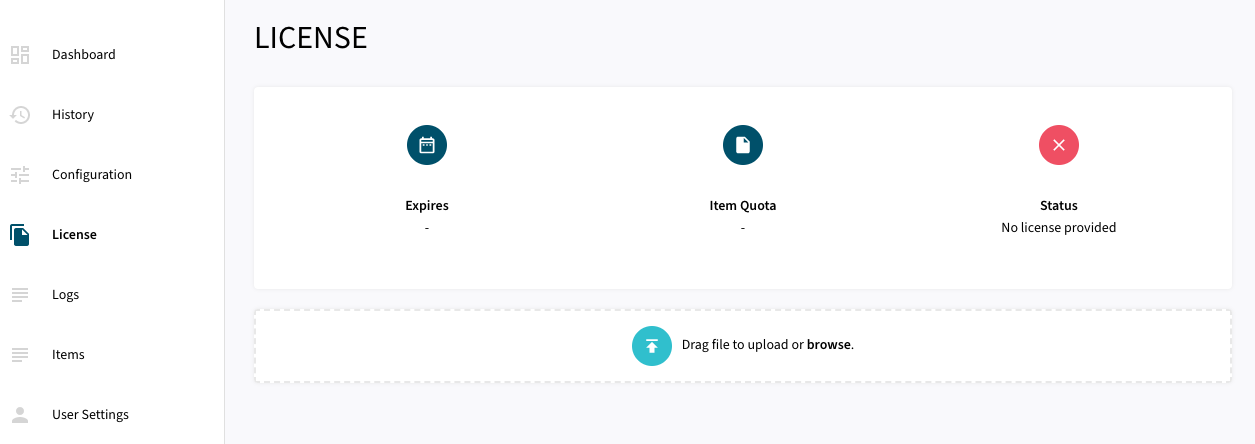
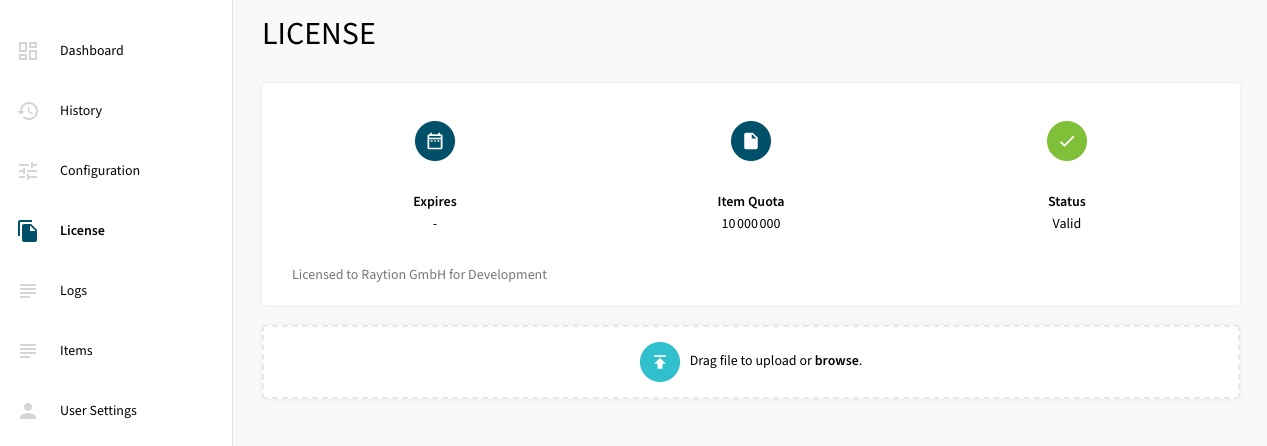
Select License in the menu:
-
Upload the license file by browsing for the file or simply dragging a dropping the license onto the license page
-
The Status of the license will be displayed as valid, and the expiration and item quota will also be displayed:
Synchronizing Data
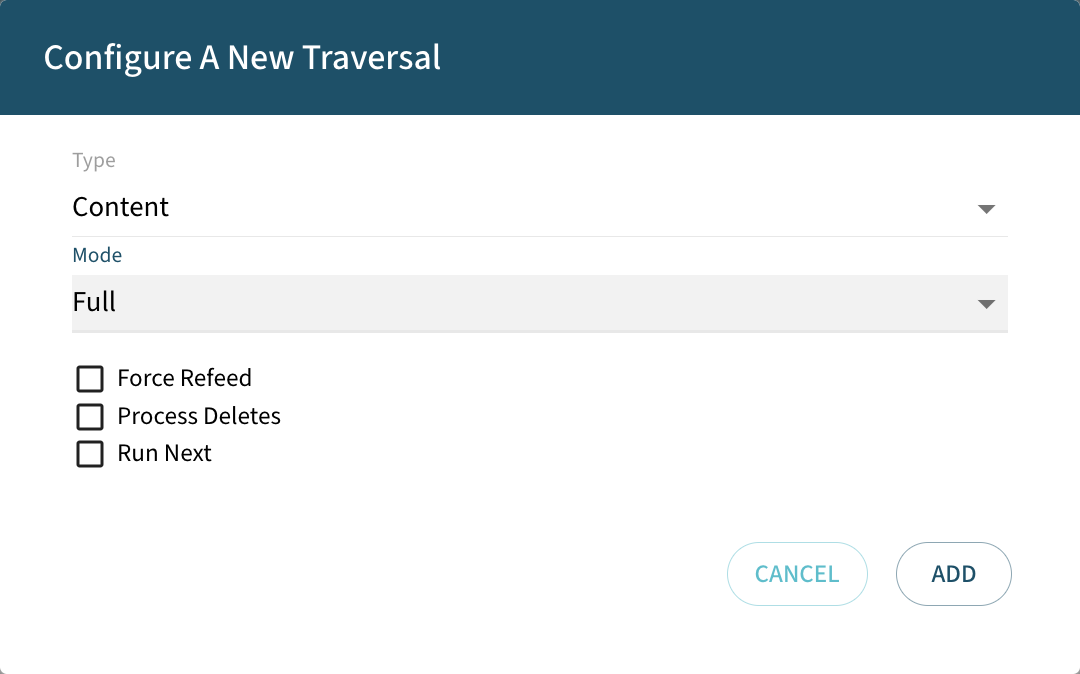
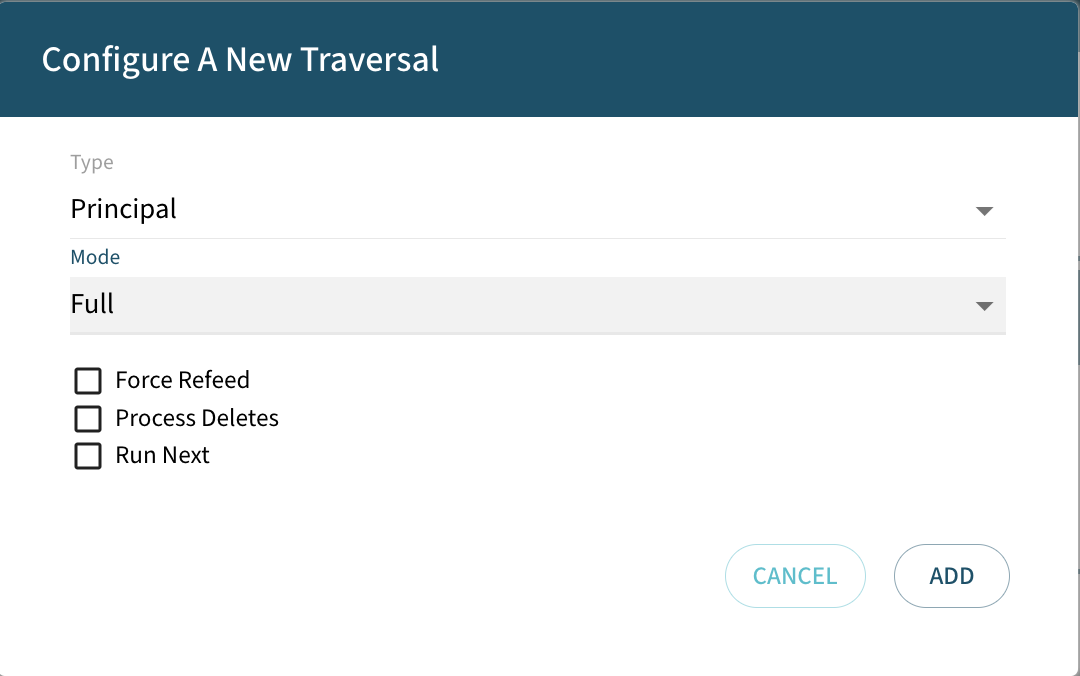
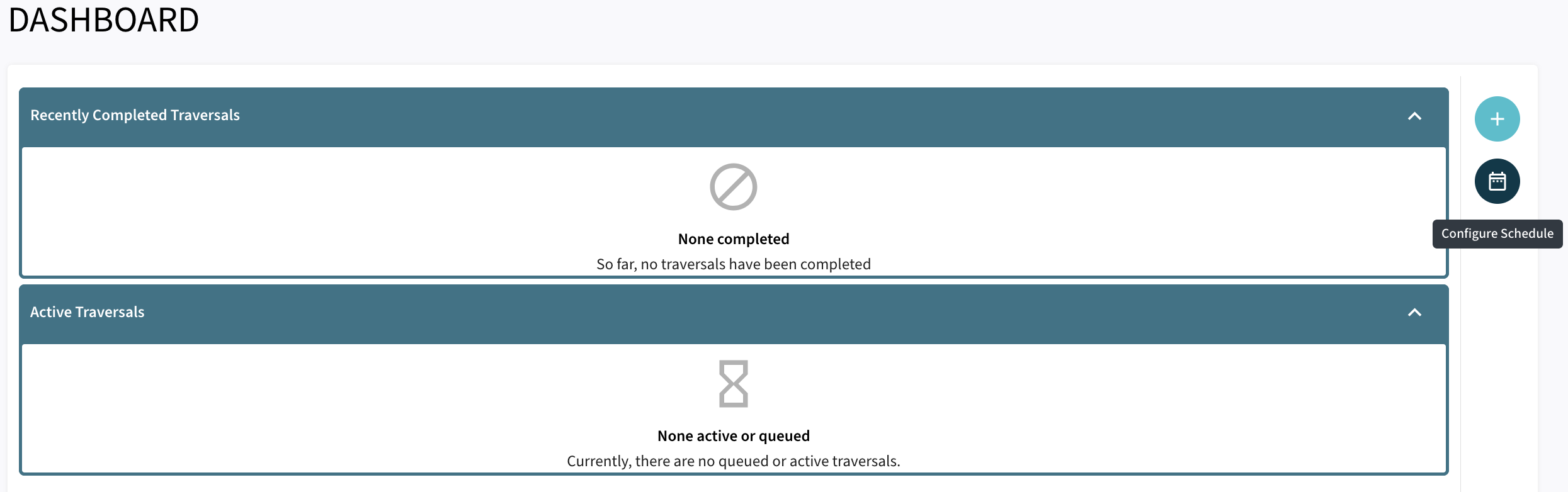
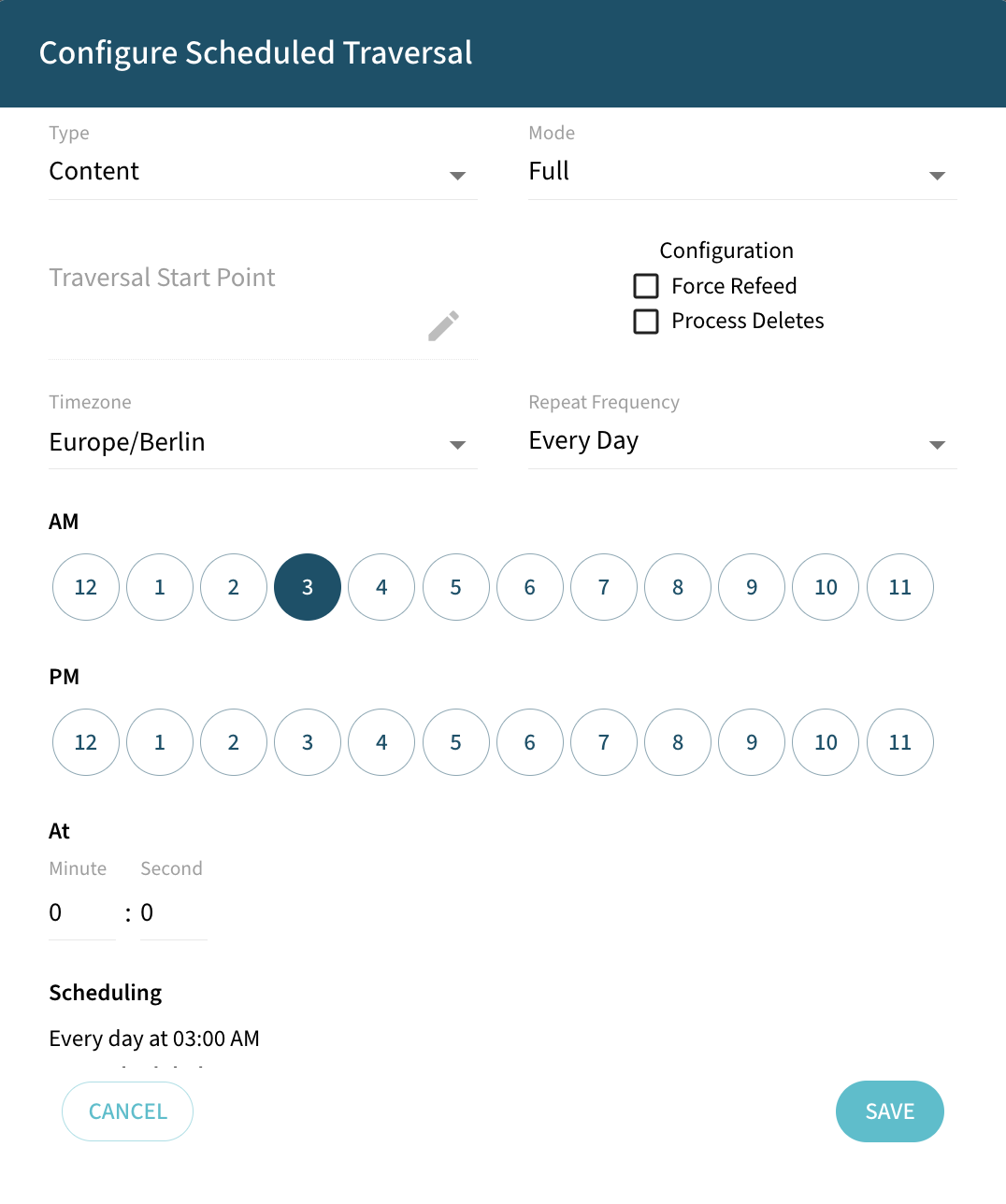
Once the connector is configured and the license uploaded, you can start synchronizing data using the traversal feature in the dashboard.
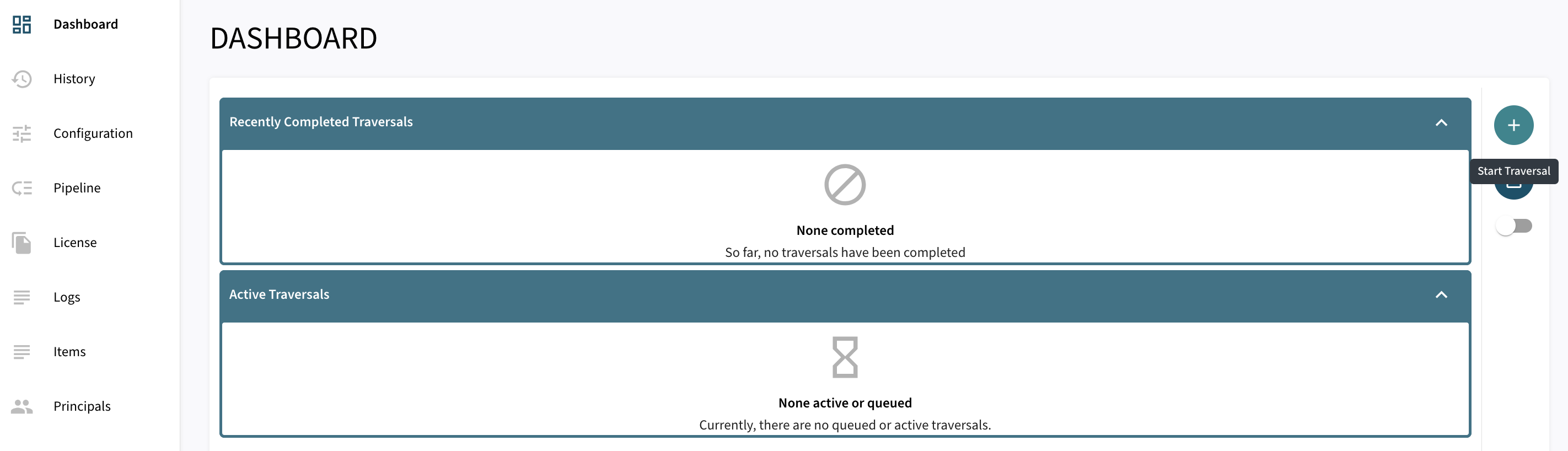
There are 3 options for Synchronizing:
-
Force Refeed Toggles if previously discovered traversal items that haven’t changed should be fed to the search engine.
-
Process Deletes Toggles if deletions should be fed to the search engine.
-
Run Next The traversal will be prioritized over other traversals without this flag in the queue.
-
Automated Change Processing can be enabled to automatically process certain live updates from Atlassian Confluence to Google Cloud Search.