Google Cloud Search
Quick Start
Enable APIs
For the connector to work, certain APIs in Google Cloud Search have to be enabled. To do so, execute the following steps:
-
Login to the Google Cloud Search Console with your admin account
-
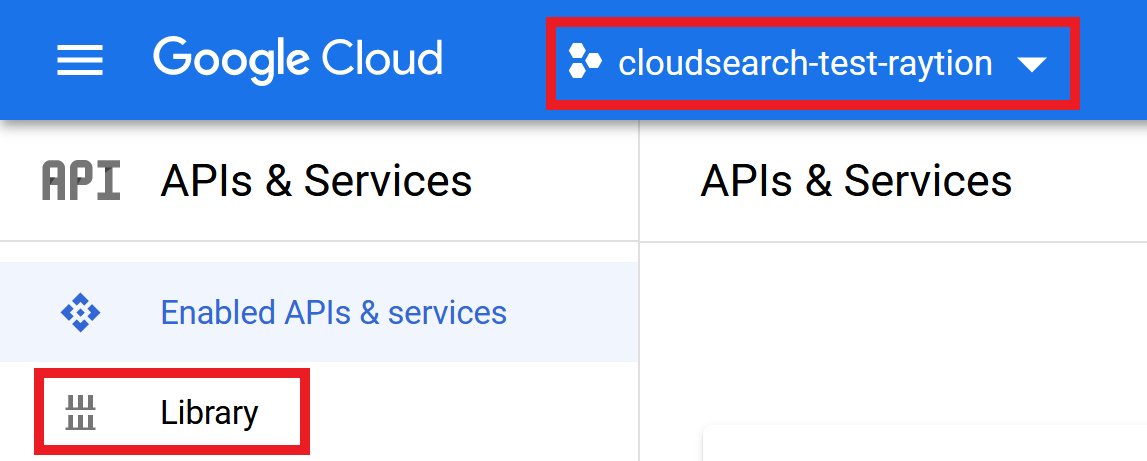
Select your project and click on Library
-
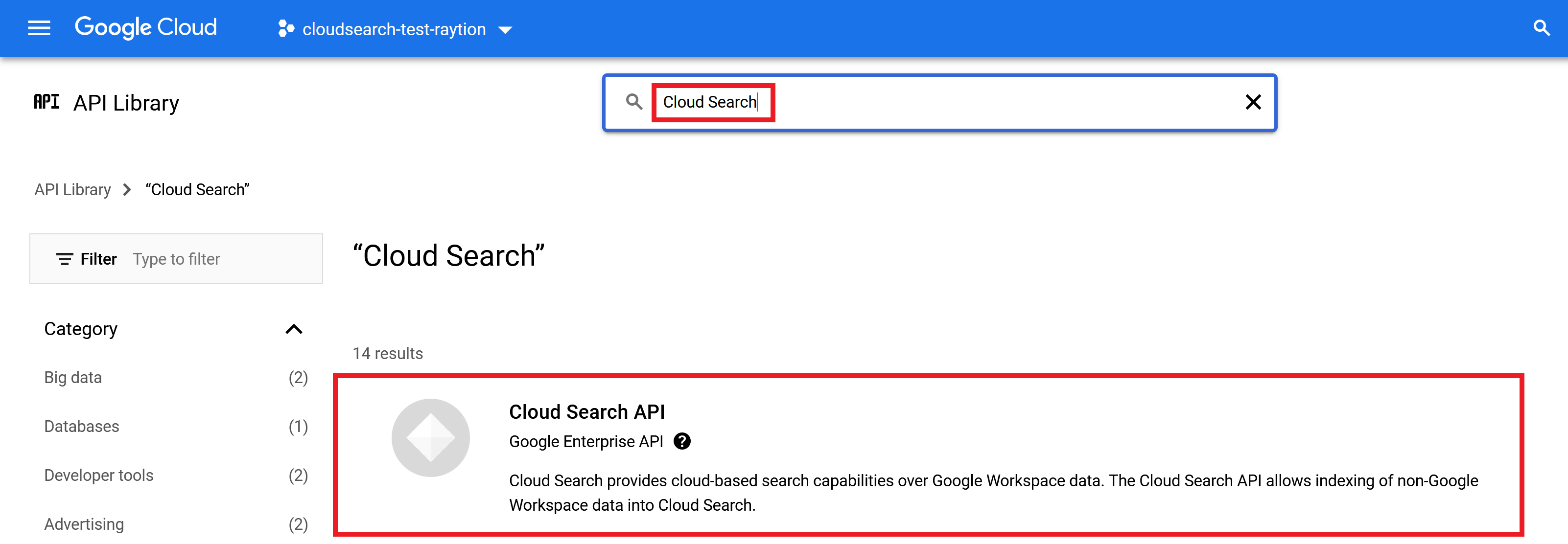
Search for Cloud Search and click on the result Cloud Search API
-
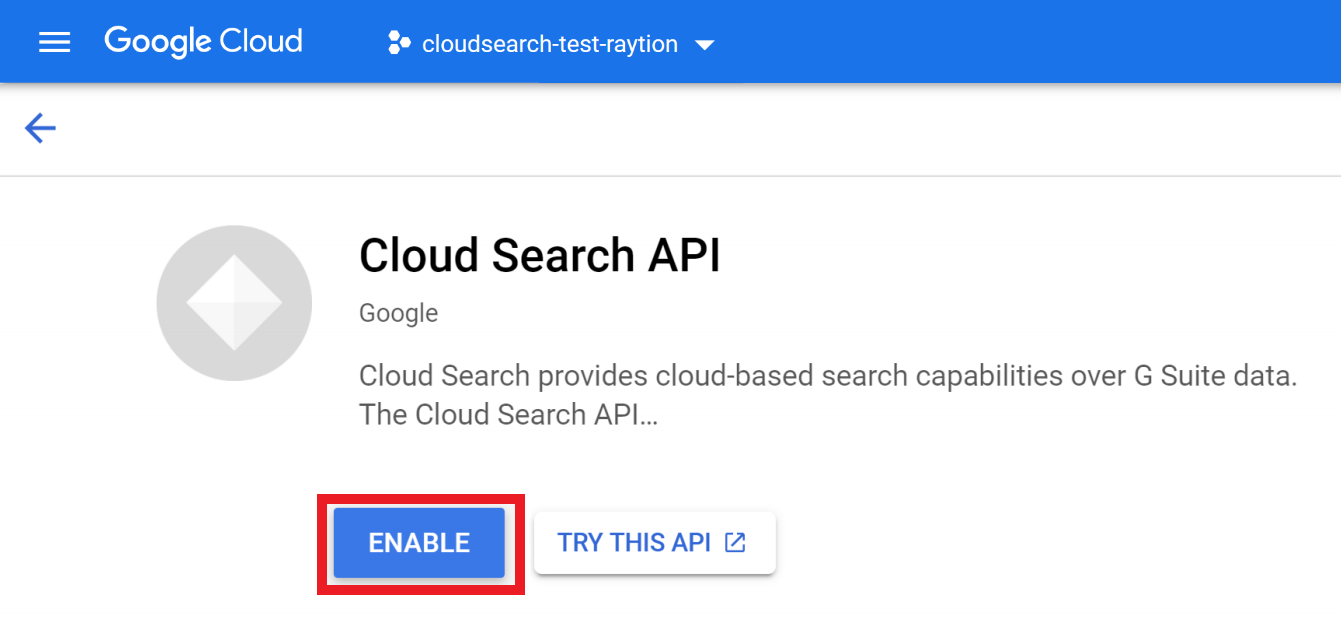
Click on ENABLE
-
Enable Cloud Identity by executing steps 3 and 4 for Cloud Identity
-
Enable Admin SDK API by executing steps 3 and 4 for Admin SDK
Create Service Account
For the connector to authenticate with Google Cloud Search a Google Cloud Service Account is needed. To create an account, the following steps have to be executed:
-
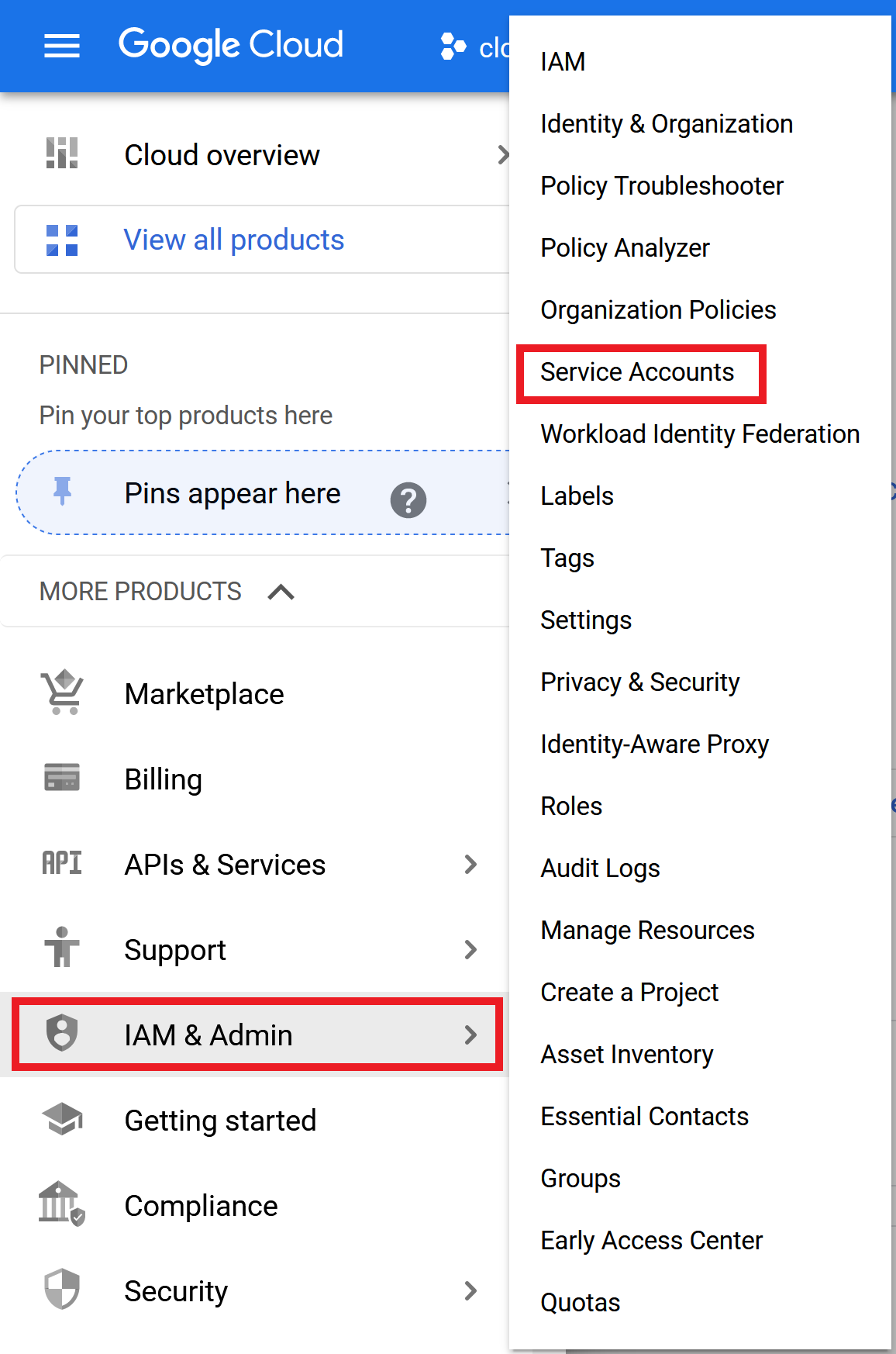
Open the menu of the Google Cloud Search Console and select IAM & Admin → Service accounts
-
Press CREATE SERVICE ACCOUNT

-
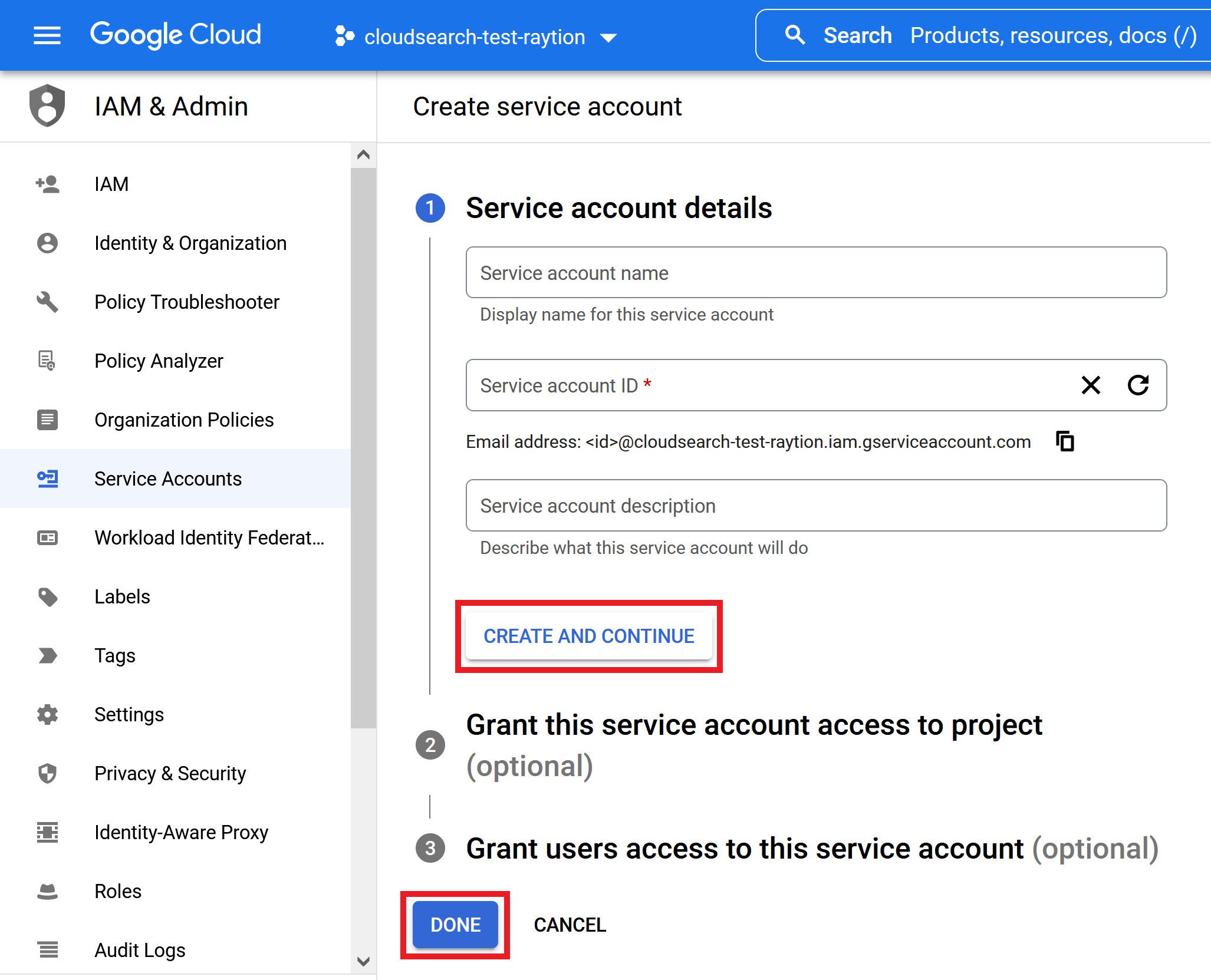
Enter a name and click CREATE AND CONTINUE
-
Skip the optional settings and click DONE
Create and download Service Account Key File
The connector needs a JSON file with the private key of the service account for authentication. This service account file can be generated and downloaded by executing the following steps:
-
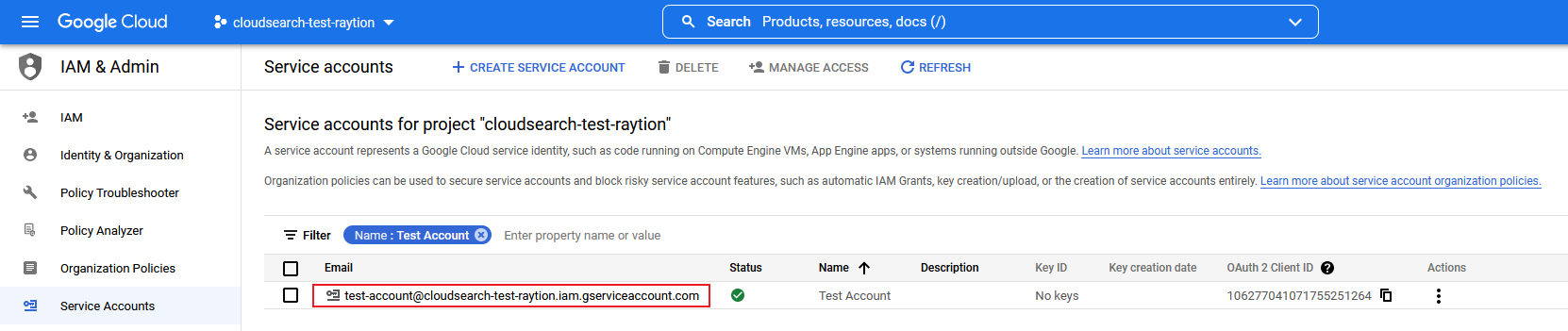
Open the service account details by clicking on the account
-
Open the KEYS tab and click on ADD KEY → Create new key

-
Create the service account file by clicking on CREATE and store it under a suitable location

Set up Domain-wide Delegation (if only existing users should be fed)
If only existing users should be fed to Google Cloud Search, domain-wide delegation has to be activated for a service account. To do so execute the following steps:
-
Make note of the OAuth 2 Client ID of the service account
-
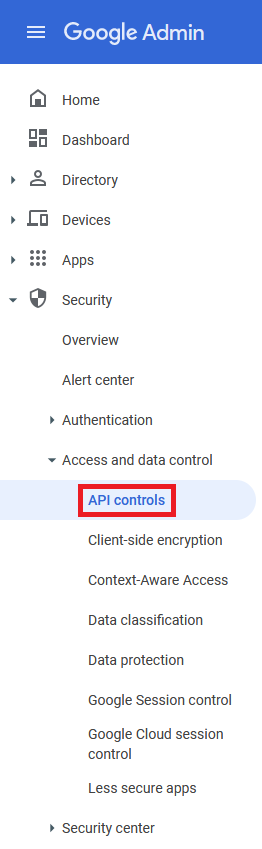
Login to Google Admin with your admin account and navigate to the API controls and click on MANAGE DOMAIN WIDE DELEGATION

-
Click on Add new

-
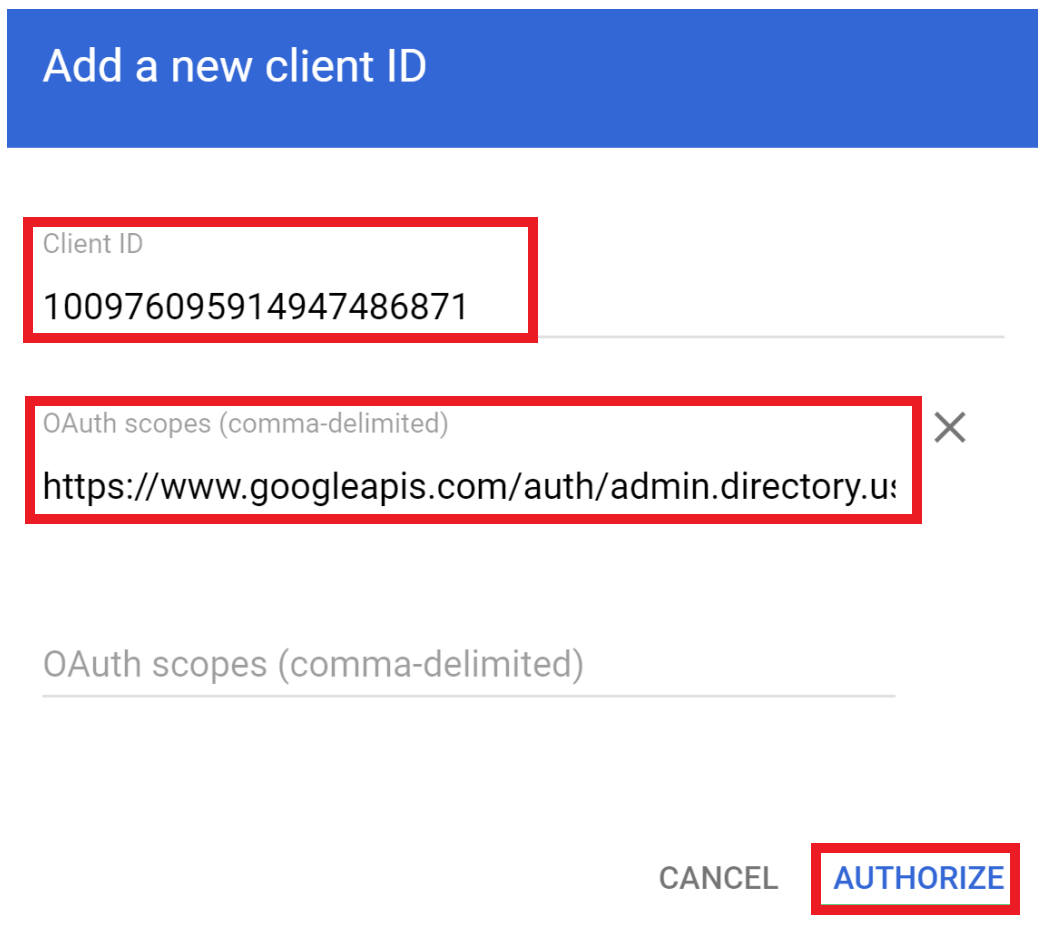
Enter the service account’s OAuth 2 Client ID in the field Client ID and the scope https://www.googleapis.com/auth/admin.directory.user.readonly in the field OAuth scopes
-
Click AUTHORIZE
Create Data Source
To set up the search first a Datasource in Google Cloud Search has to be created. A Datasource stores searchable content items. To create a Datasource open the Google Cloud Search Admin View:
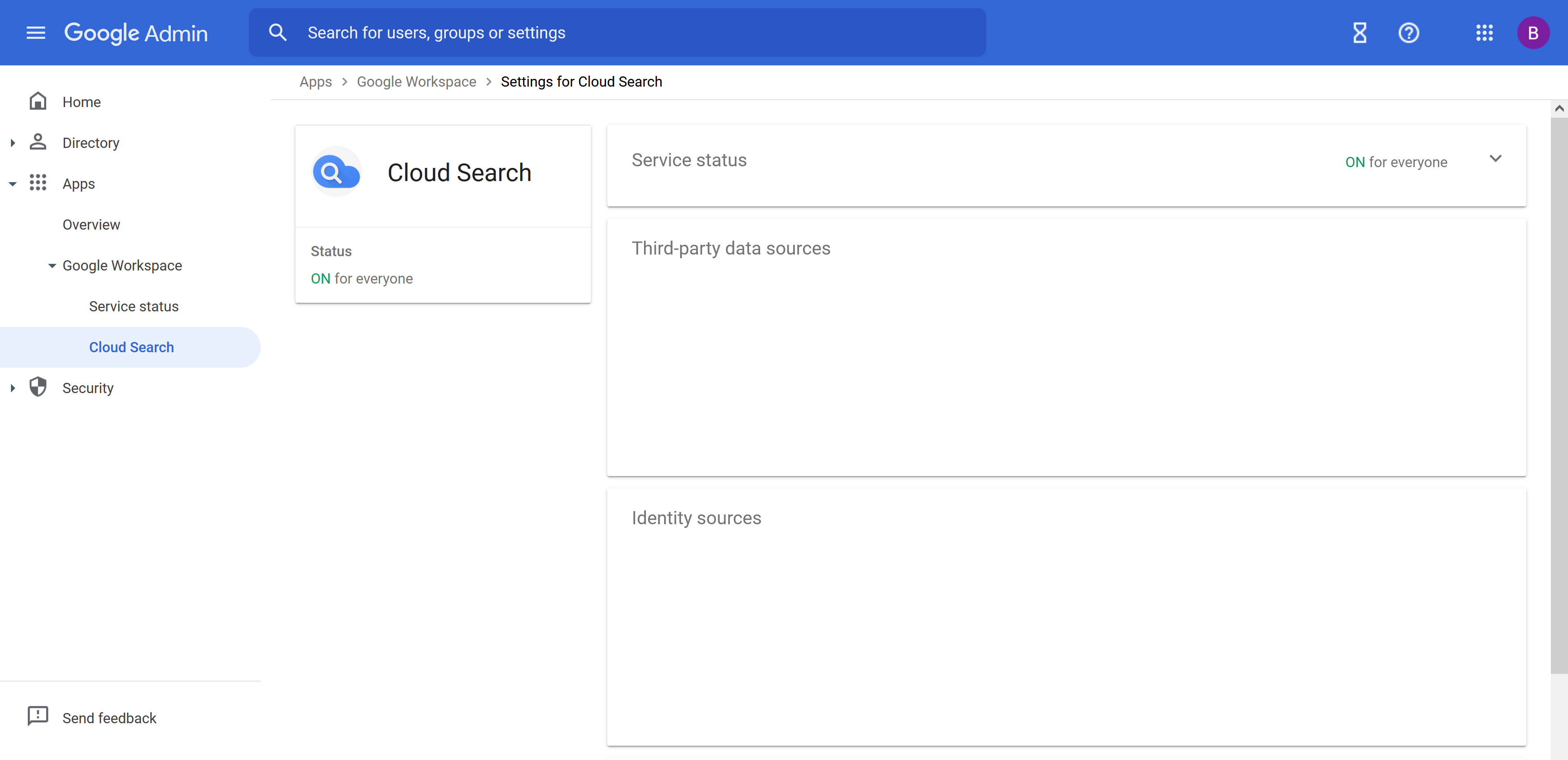
Under this Admin View click on Third-party data sources to open the Datasources View:
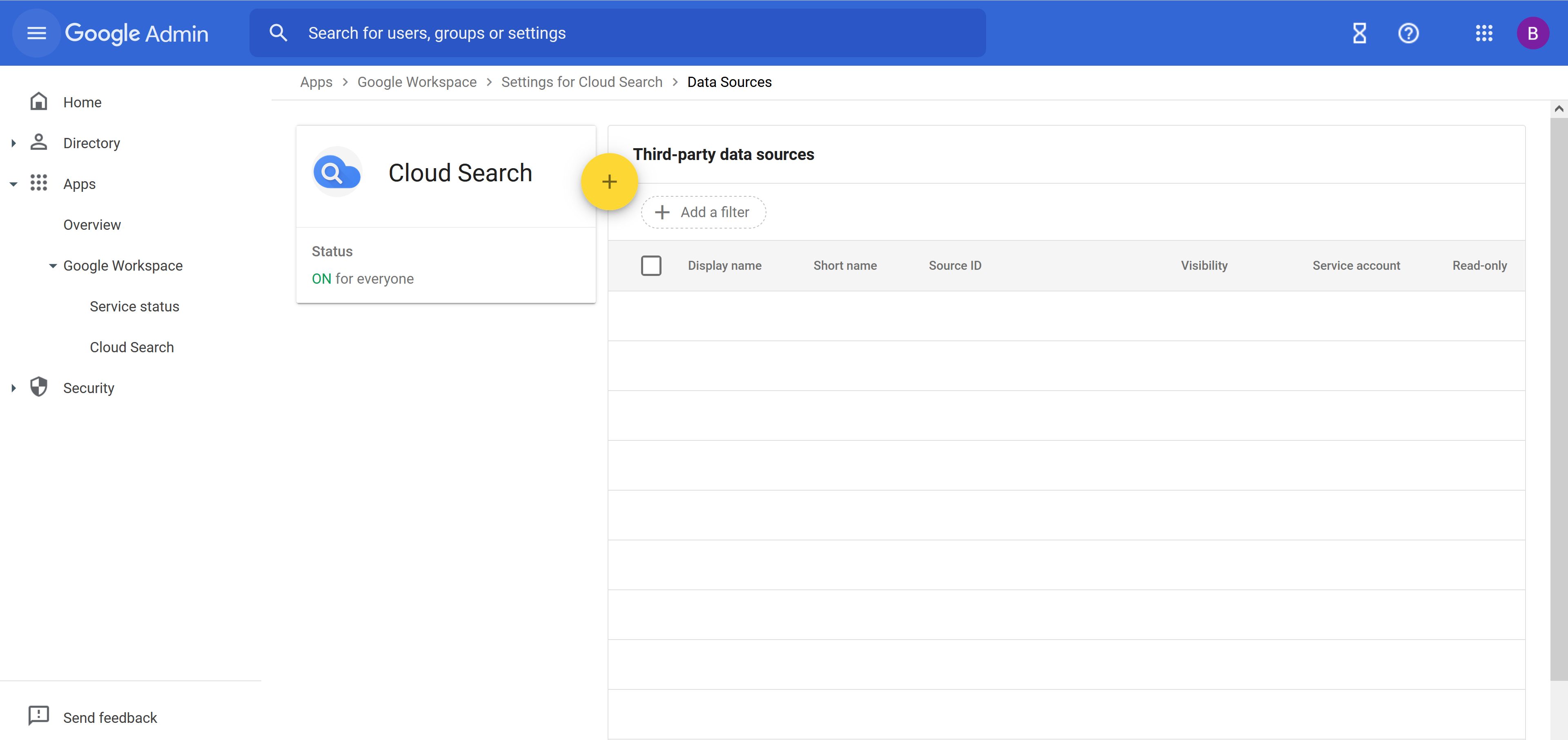
To add a new Datasource click on the + symbol so that the following dialog pops up:
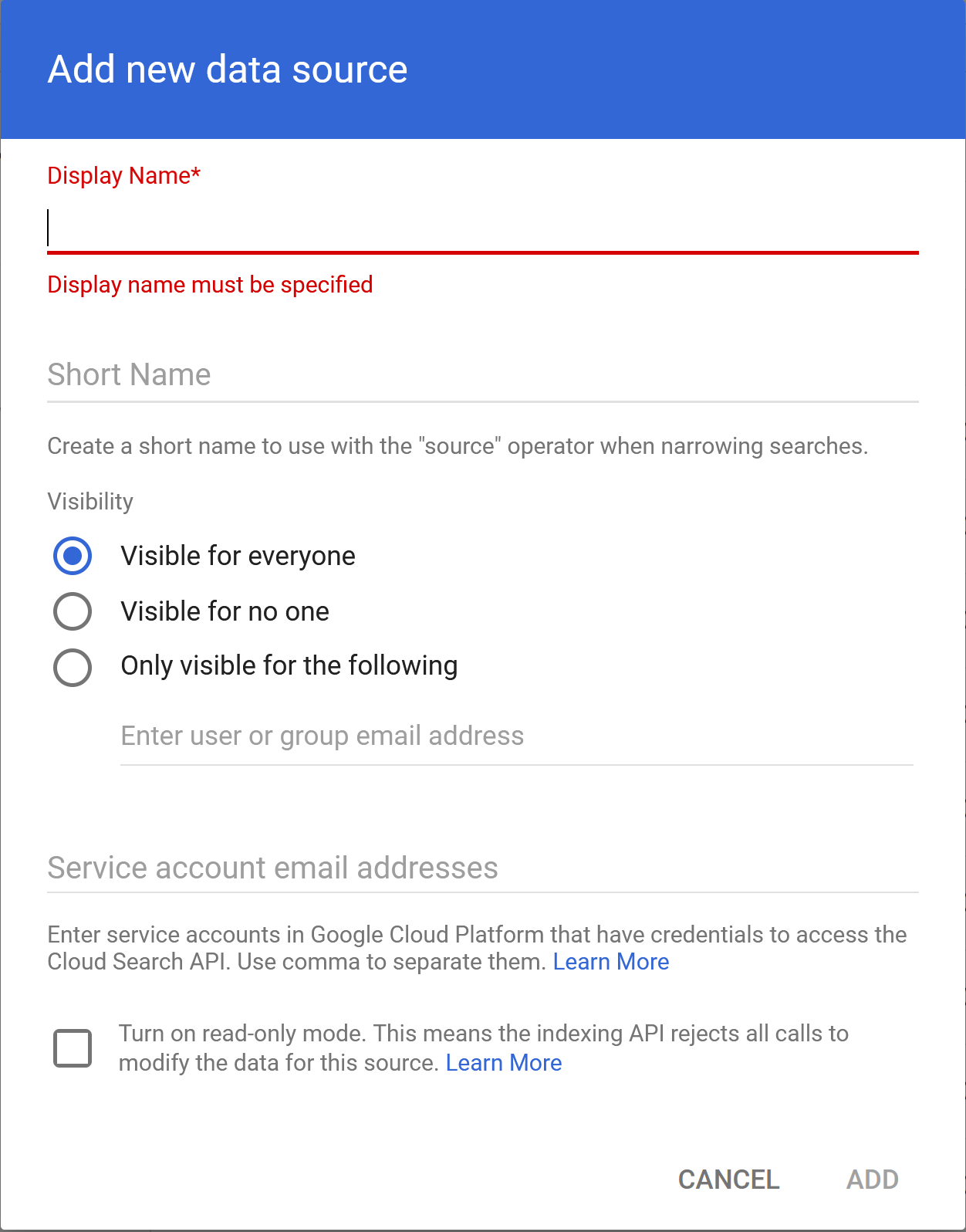
Specify a name for the Datasource and set the email address of the service account that has the permissions to write to the Google Cloud Search API.
Create Identity Source
To create an Identity Source open again the Google Cloud Search Admin View and click on Identity sources so that the following view opens:
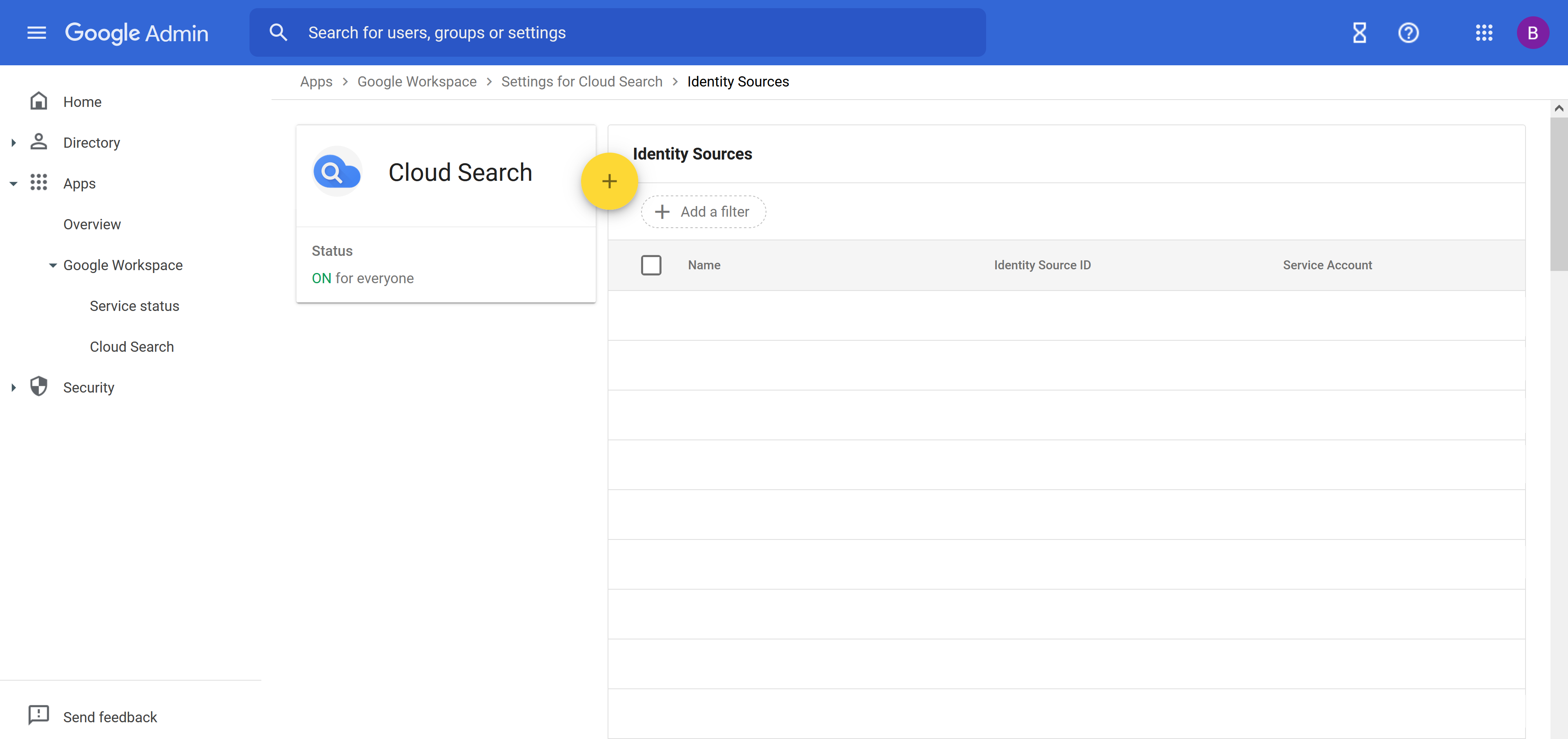
By clicking on + the following view pops up in which you can add a new Identity Source:
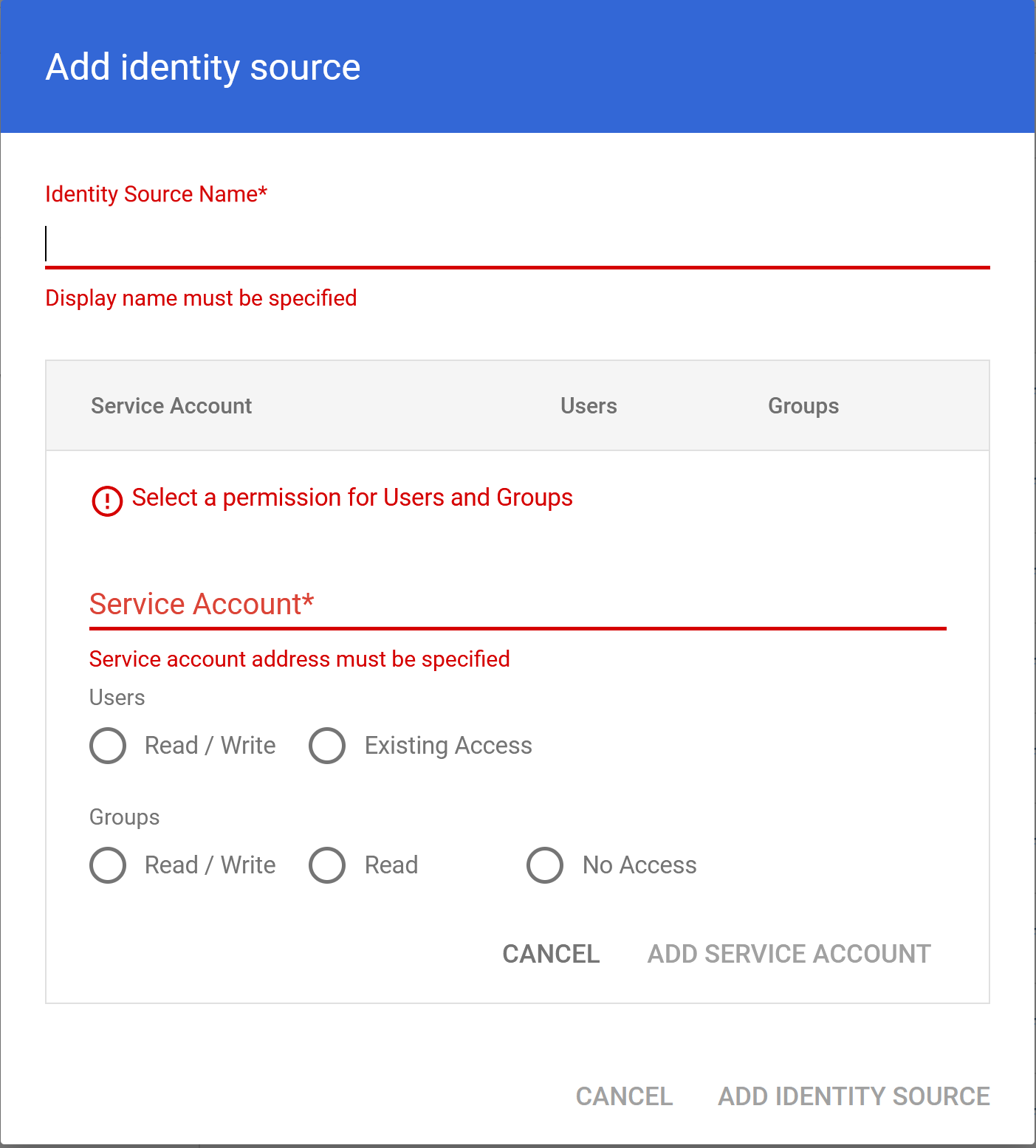
Specify a name for the Identity Source and again set the email address of the service account that has the permissions to write to the Google Cloud Search API. Also set the permissions for the users and groups.
Create Data Source Schema (Optional, recommended)
Google Cloud Search allows us to feed documents into schema-less data source.
In order to define facets and the display options in the search result, the data source requires a schema.
The out-of-the-box recommended schema definition for the connector is defined as datasource-schema.json inside the folder /schema inside the connector installation.
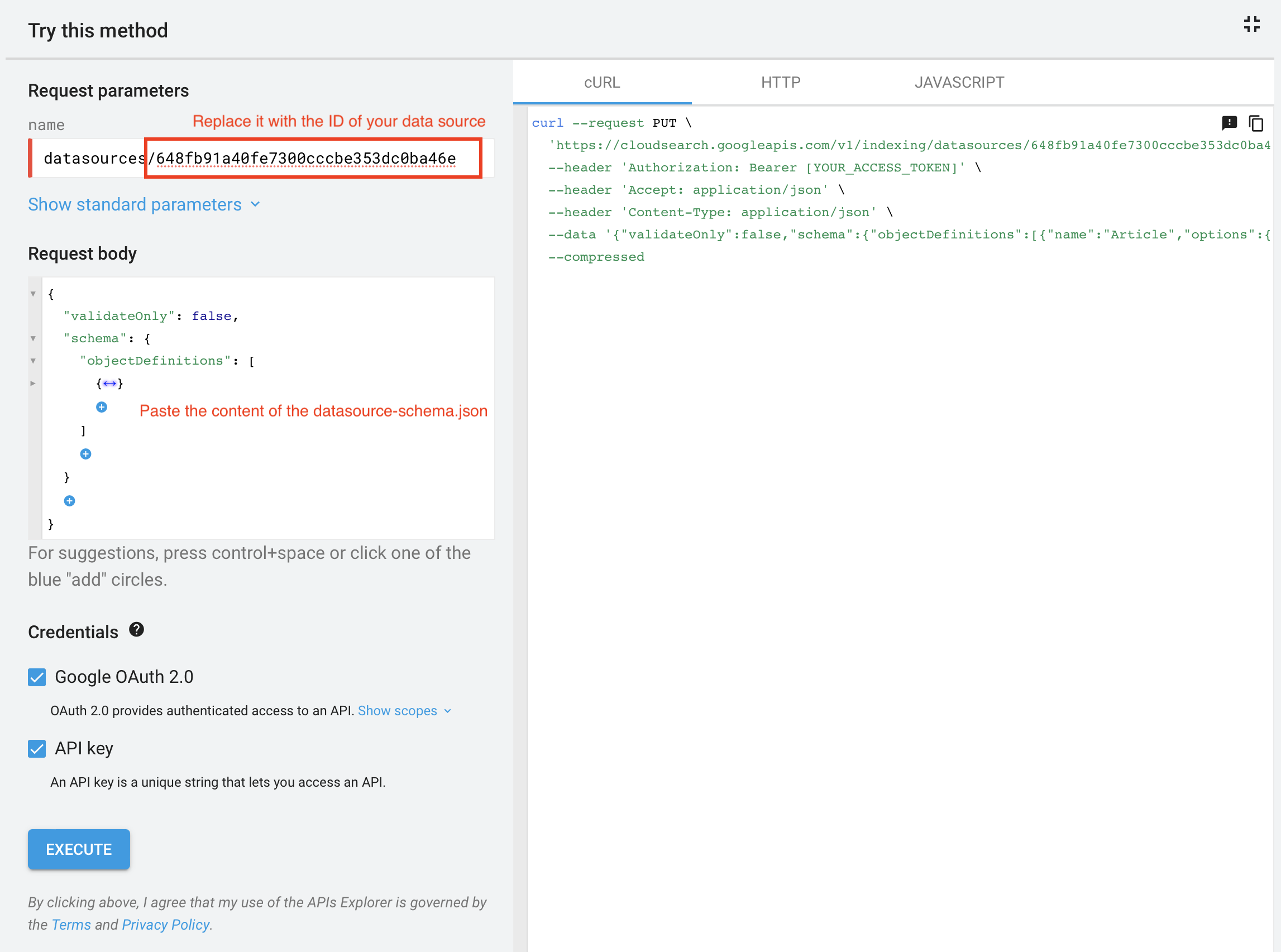
Use the recommended schema file to update the schema of your data source using the Cloud Search API Explorer.
-
Login with your Cloud Search Account
-
Specify the ID of your datasource using the format
datasources/<your-datasource-id>as the name option in the request parameters. -
Paste the content of
datasource-schema.jsonas request body. -
Complete the request with the option EXECUTE.
Setup Search Application
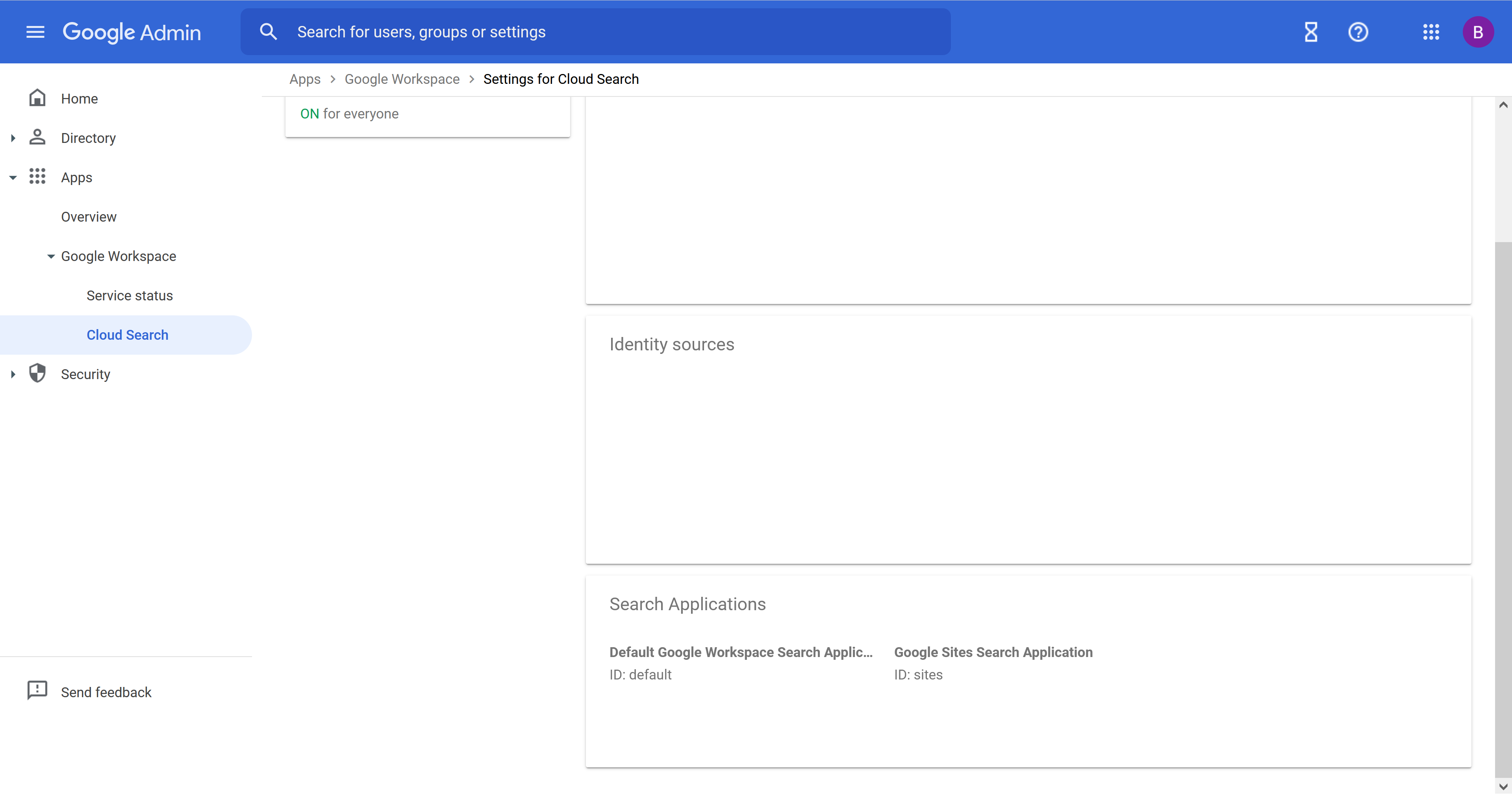
After creating a Datasource and an Identity Source the Search Application can be set up. To do so go to the Google Cloud Search Admin View and click on Search Applications:
Then the Search Application View opens:
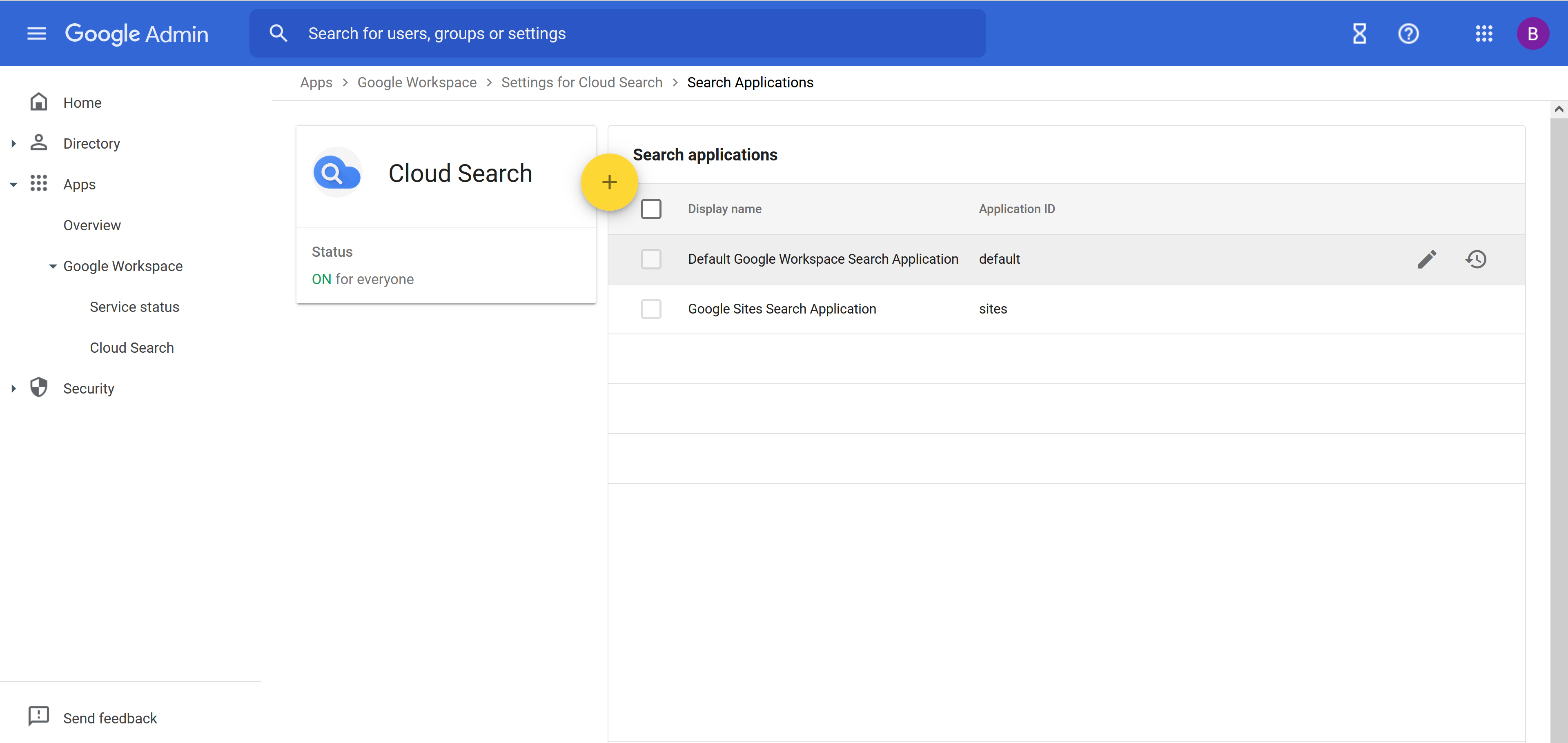
To set up the default Google Cloud Search Application click on the pen to edit it:
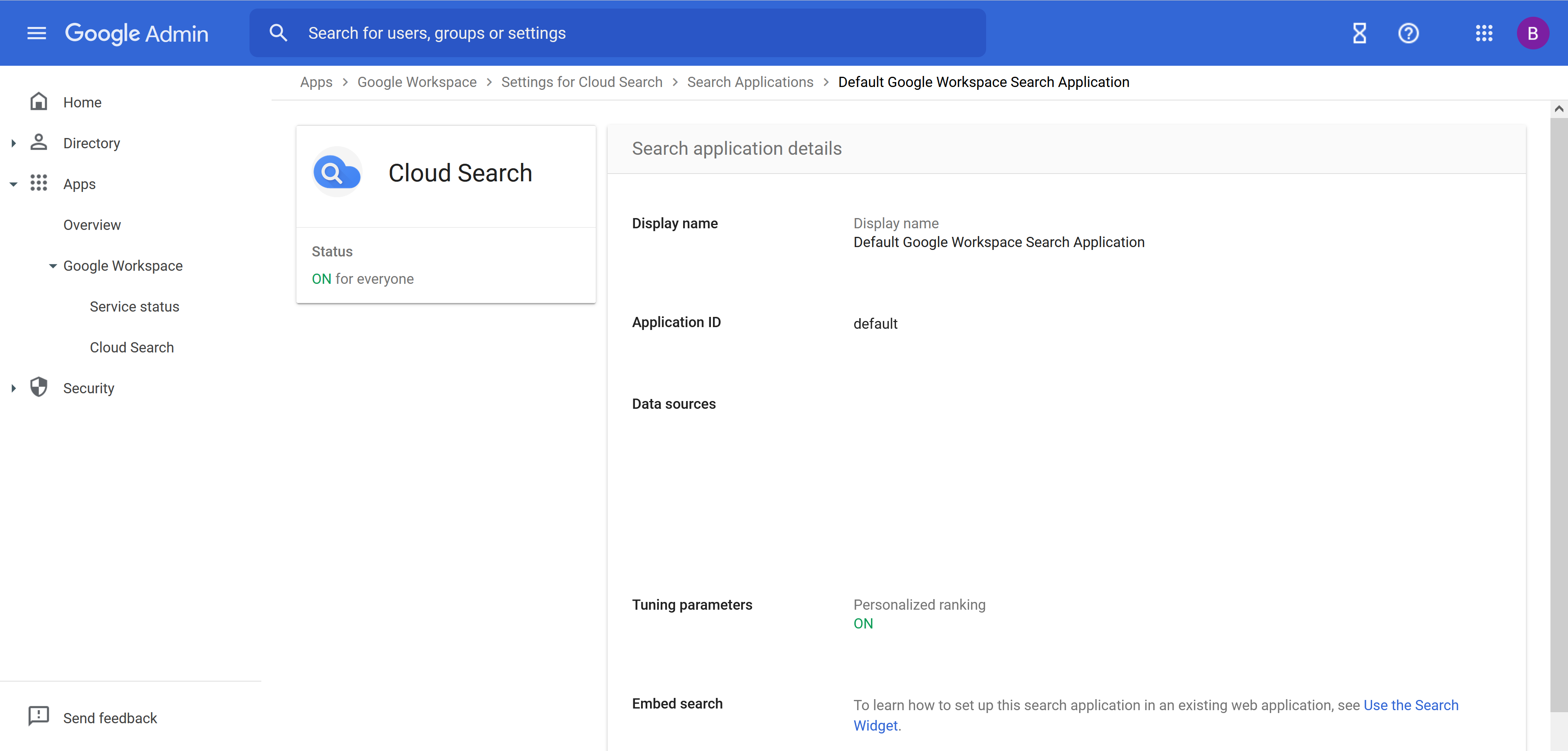
Click on Data sources to see which Datasources are enabled in the Search Application:

Look for the previously created Datasource and enable it for this Search Application.